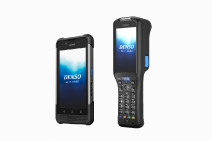
Running the newly created user application
program on the BHT requires first downloading it to the BHT with
a transfer utility.
The description of downloads proceeds in the following order.
For further details, refer to the product User's Manuals and
the Transfer Utility Guides.
Setting up hardware environment
Connect the BHT to the development host with the dedicated interface
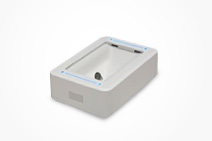
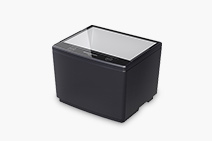
cable. Alternatively, connect the CU with an appropriate RS-232C
cable.
 
Setting up BHT
Configuring download environment
- Holding down the SF and 1 keys and turning on the power displays
the system menu.
- Choose "SET SYSTEM" to display the system environment
menu.
Note that the menu and item numbers depend on the BHT model.

- Choose "COMMUNICATION" to display the communications
environment menu.
Note that the menu and item numbers depend on the BHT model.
- Specify the communications port to use, the transmission
speed, protocol, and other parameters.
Note that the menu and item numbers depend on the BHT model.

| Menu Item |
Description |
| OPTICAL |
PARAMETER |
TRANSMIT SPEED |
Transmission speed |
Using the CU requires setting these to match
the environment used and the transfer utility settings. |
| PROTOCOL |
SERIAL No. |
Serial number |
| H.PARITY |
Horizontal parity |
| LINKUP TIME |
Linkup time |
| FIELD SPACE |
Treatment (trim/retain) of trailing spaces during data
file downloads |
| CONNECTOR |
PARAMETER |
TRANSMIT SPEED |
Transmission speed |
Using a direct-connect interface cable requires
setting these to match the environment used and the transfer
utility settings. |
| PARITY BIT |
Parity |
| DATA BIT |
Data bits |
| STOP BIT |
Stop bits |
| PROTOCOL |
SERIAL No. |
Serial number |
| H.PARITY |
Horizontal parity |
| LINKUP TIME |
Linkup time |
| FIELD SPACE |
Treatment (trim/retain) of trailing spaces during data
file downloads |
| COM PORT |
BASIC |
Communications port for downloading in user application
programs |
Optical for CU; Connector for direct-connect interface |
| SYSTEM MODE |
Communications port for downloading from system menu |
Optical for CU; Connector for direct-connect interface |
| PROTOCOL TYPE |
Communications protocol |
Use the same setting as the transfer utility. |
Downloading
- Holding down the SF and 1 keys and turning on the power
displays the system menu.
- Choose "DOWNLOAD" to display the Download menu.
- Choose "FILE."

The following display indicates that the BHT is ready to receive
downloads.

The following display indicates a successful download.
Setting Up PC
Configuring download environment
- Start the transfer utility.
- Choose the Options|Select protocol menu command to display
the Select Protocol screen.
Note that the Ir-Transfer Utility and the Transfer Utility
do not offer this menu command.

- Select the communications protocol appropriate for the BHT
model used. (See the table below.)
| BHT series |
Protocols available |
BHT-7000 series
BHT-7500 series
BHT-8000 series
BHT-100 series |
BHT-Ir protocol |
| BHT-300 series |
Ymodem protocol(Batch) (Preferred choice),
BHT-Ir protocol
|

- Choose the Options|Options menu command to display
the corresponding Communications Options dialog.
- Specify the communications port, transmission speed, and
other parameters to match the intended usage environment.
Communications Options screen for Ymodem protocol (Batch)

Communications Options screen for BHT-Ir protocol

Downloading
- Choose the File|Send menu command to display
the Send File dialog box.

- Select a user application program and press
the Open button.

The following display tracks download progress.

The following display indicates a successful
download.

Transfer Utilities Available
The following transfer utilities are available:
the BHT-BASIC 4.0 Transfer Utility, Ir-Transfer
Utility C (It3cw32.exe), and Transfer Utility (Tu3w32.exe).
They differ in the communications protocols offered.
(See the table below.)
| Utility |
Protocols Available |
| BHT-BASIC 4.0 Transfer Utility |
Ymodem protocol
BHT-Ir protocol |
| Ir-Transfer Utility C |
BHT-Ir protocol |
| Transfer Utility |
BHT-protocol |
Communications
protocols Available
The following communications protocols are available.
(See the table below.)
| Protocol |
Protocol Description |
BHT-Ir protocol
(First choice for BHT-7000,
BHT-7500, BHT-8000, and BHT-100 series)
|
Denso's proprietary file transfer protocol |
Ymodem protocol
(First choice for BHT-300
series) |
Standard Ymodem protocol
This protocol offers faster throughput than
BHT-Ir protocol. |
| BHT protocol |
Denso's proprietary file transfer protocol
This protocol is currently only offered
to maintain compatibility with older models. |
The FTP protocol is also available for downloading
via a CU supporting Ethernet or to BHT models supporting
wireless LAN. |