How to download and use QRdraw Ad software

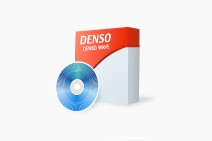
You can download the QRdraw Ad from DENSO WAVE’s website in following steps.


  1. You need to make your account of our QBdirect online service to use the QRdraw Ad. Please register yourself on the QBdirect User Registration page.
    If you have already purchased the License Paper of QRdraw A, please register the product serial number printed on the License Paper, while on the QBdirect User Registration.

    QBdirect User Registration:https://www.denso-wave.com/qbdirect/en/member/entry/select_type.html.php


  2. First, you need to log in QBdirect and access the Download page (Viewing this Download page requires your logged-in status). Then, download the "QRdraw Ad (trial version)" from the download section.

    QBdirect Download:https://www.denso-wave.com/qbdirect/en/member/category/index.php?_mode=detail&detail_file_name=qb%2Fen%2Fdownload%2FQRdrawAd_trial.html

  3. To install the QRdraw Ad, execute the downloaded program with the user account as an administrator.

  4. When the program is properly installed, start the QRdraw Ad and click "Registration" in the "Help" from the menu bar. The Product Key Registration dialog appears after that. You can check the ID number of your product on this dialog.

  5. Go to the Product Key Issue page and apply for a product key using the product ID and the access code printed on the License Paper.

    Product Key Issue page: https://www.denso-wave.com/prokey/en/


  6. After you get a product key for the QRdraw Ad, please register the product key on the "Product Key Registration" dialog (go to [Help]>>[Registration] from the menu bar), used for checking your product ID in Step 4.